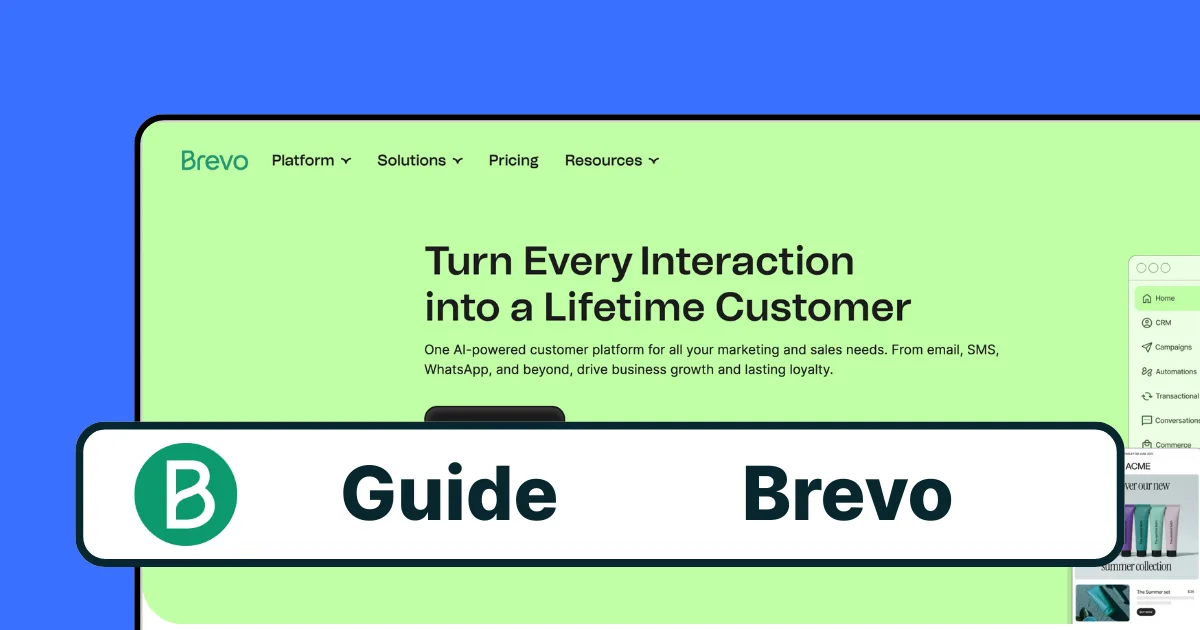
Brevo gives you the events (form submitted, meeting booked). Pimms gives you the attribution — which link or campaign generated the conversion.
The Pimms dashboard has an interactive setup wizard that guides the full Brevo configuration — webhooks, redirect links, and verification. Connect both Brevo Forms and Brevo Meetings in a single setup to get complete lead attribution across your entire Brevo workflow.
Whether you use Brevo to capture leads through embedded forms or schedule meetings with prospects, Pimms tracks every conversion back to the campaign that started it.
Why track Brevo with Pimms?
-
Measure your newsletter-to-lead pipeline. You send a Brevo email campaign linking to a Brevo form. Without Pimms, you see form submissions in Brevo but can't tell which email campaign (or which link inside it) generated the lead. With Pimms, every form fill is attributed to the exact campaign.
-
Know which channels book the most meetings. You share your Brevo Meetings link on LinkedIn, in cold emails, and in your email signature. Pimms shows you which channel generates the most booked meetings — so you can focus your outreach where it converts.
-
Compare organic vs paid lead quality. Running Google Ads and also posting on Twitter? Create separate Pimms links for each and see not just which one gets more clicks, but which one generates actual form submissions and meeting bookings.
Prerequisites
- A Brevo account (free or paid)
- A Pimms account (sign up here)
- At least one Brevo Form or Brevo Meetings page ready
What you'll track
- Brevo form submissions — Every form fill with the visitor's details and the campaign that brought them
- Brevo Meetings bookings — Every scheduled meeting linked to the traffic source that drove it
- Lead attribution by campaign — Which ad, email, social post, or partner link generated each lead
- Channel performance — Compare conversion rates across all your marketing channels
How to set it up
Go to your Pimms dashboard, open Integrations → Brevo, and launch the setup wizard. It walks you through configuring webhooks for both Forms and Meetings, creating a thank-you redirect link, and verifying the connection with a test submission. Setup takes under 5 minutes.
What the setup wizard covers
The Brevo wizard has 4 steps:
- Configure Brevo webhooks — Set up webhooks for Forms and Meetings in your Brevo account
- Create a thank-you redirect link — Generate a tracked redirect URL to use as Brevo's confirmation page
- Create a test link — Generate a test tracking link to your Brevo form or meeting page
- Verify tracking works — Submit a test form or book a test meeting to confirm attribution
How it works
- Create a Pimms link pointing to your Brevo form or Meetings page
- Share that link in your campaigns — emails, ads, LinkedIn, or anywhere you promote
- A visitor clicks, fills out your form or books a meeting, then gets redirected to a Pimms thank-you link
- Pimms attributes the lead to the original campaign — the webhook confirms the event, and the thank-you redirect captures the attribution
The combination of webhook events + thank-you redirect gives you reliable, real-time attribution for every Brevo conversion.
Best ways to share your tracking links
- Email campaigns — Use Pimms links in your Brevo emails to track which campaigns drive the most form fills
- LinkedIn outreach — Share your Brevo Meetings link via Pimms to see which LinkedIn posts or messages book meetings
- Landing pages — Embed your Brevo form on a landing page and drive traffic with tracked Pimms links
- Paid ads — Point your Google or Meta ads to a Pimms link that leads to your Brevo form
- Partner referrals — Give partners unique tracked links to measure their lead contribution
What you'll see in your dashboard
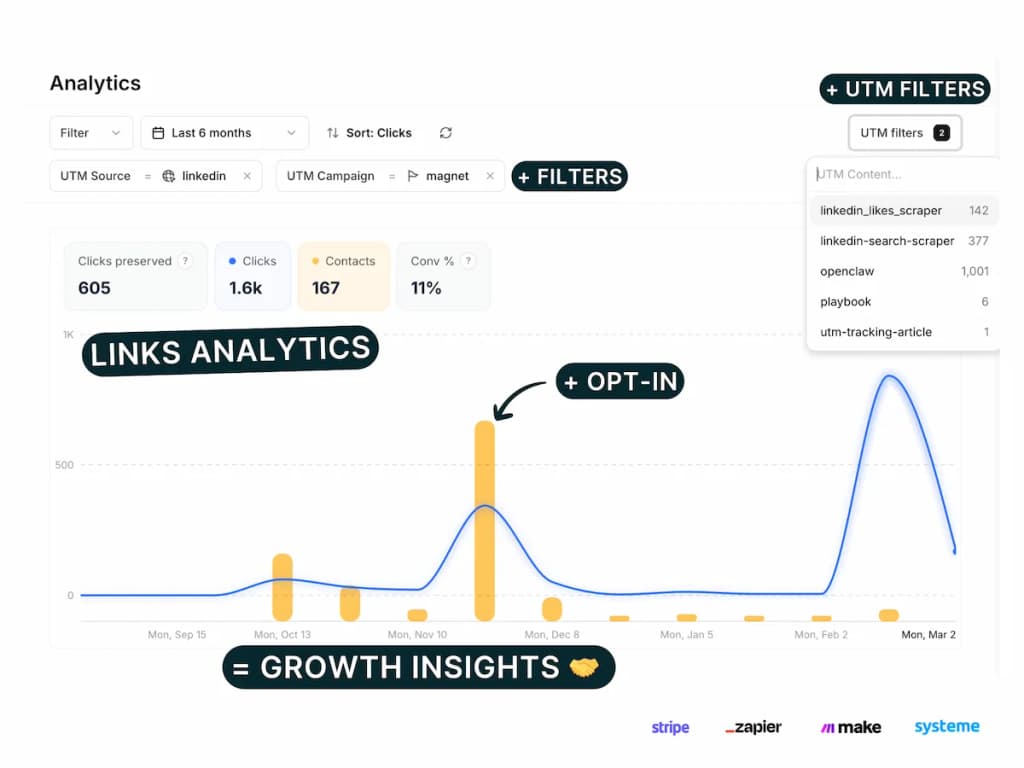
Your Pimms dashboard shows every Brevo form submission and meeting booking in real time with full campaign attribution. You'll see the lead's email, the form or meeting type, and the full trail — which link they clicked, from which platform, and which campaign. Filter by date, channel, or campaign to compare how different traffic sources perform.
FAQs
How long does Brevo tracking setup take?
Under 5 minutes with the wizard. The dashboard guides you through webhook configuration, thank-you redirect setup, and verification — no manual technical steps required.
Does it work with both Brevo Forms and Meetings?
Yes! Both Brevo Forms and Brevo Meetings are supported. The wizard configures webhooks for both event types, so form submissions and meeting bookings are tracked with full attribution.
Can I track multiple Brevo forms?
Yes! Once Brevo is connected via the wizard, all your forms are tracked automatically. Every submission is attributed to the campaign and link that brought the visitor.
What is the thank-you redirect link for?
The thank-you redirect link is how Pimms captures the attribution data. After someone submits a form or books a meeting, Brevo redirects them to this link — which tells Pimms that a conversion happened and connects it to the original click. You set the redirect URL in Brevo's form or meeting settings.
It starts here
If you made it this far, it's time to grab 10 free links.
10 smart links included • No credit card