
Paid advertising across Google, Meta, and LinkedIn accounts for the largest line item in most marketing budgets. According to a 2025 eMarketer report, global digital ad spending exceeded $740 billion, with search and social ads making up over 80% of that total. Yet many marketing teams cannot accurately attribute conversions to specific ad campaigns because their UTM tracking is incomplete or misconfigured.
Each advertising platform handles tracking differently. Google Ads uses auto-tagging with a proprietary gclid parameter. Meta Ads relies on the fbclid parameter and its Conversions API. LinkedIn Ads has its own click identifier. When you run campaigns across all three simultaneously — which most B2B and e-commerce teams do — the lack of a unified tracking standard creates attribution gaps.
UTM parameters solve this by providing a platform-agnostic layer of tracking that works consistently across every ad network, every analytics tool, and every landing page. This guide covers the exact UTM setup for each platform, when to use auto-tagging versus manual UTMs, and how to build a unified naming system.
How UTM Tracking Works for Paid Advertising
UTM parameters are query string tags appended to your ad destination URLs. When a user clicks your ad, the UTM values are captured by your analytics platform — Google Analytics 4, Mixpanel, or any tool that reads URL parameters — and attached to that user's session.
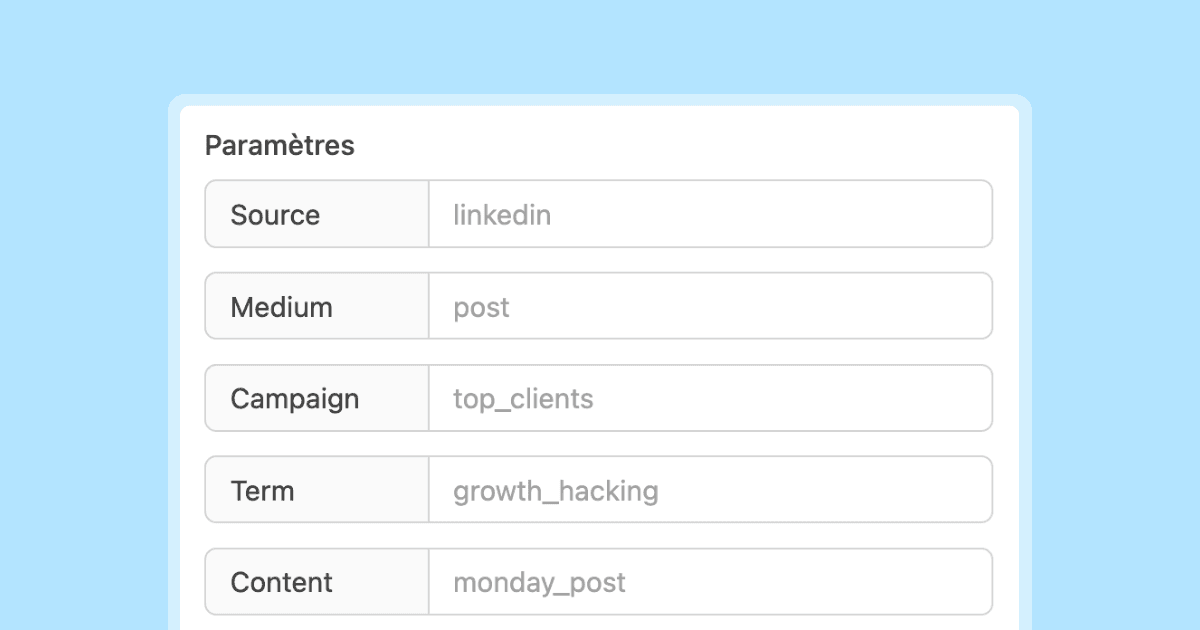
For paid advertising, the three essential parameters are:
The goal is to connect every dollar spent on ads to every dollar earned from conversions. Without UTM tracking, you rely entirely on each platform's siloed reporting — which famously over-counts conversions due to overlapping attribution windows.
Google Ads: Auto-Tagging vs Manual UTMs
Google Ads is unique among ad platforms because it offers auto-tagging through the gclid (Google Click Identifier) parameter. When auto-tagging is enabled, Google appends a gclid value to every click, and Google Analytics 4 uses this to import detailed campaign data directly from Google Ads.
When to Use Auto-Tagging (Recommended Default)
Auto-tagging is the preferred method when your primary analytics tool is Google Analytics 4. Benefits:
- Automatic data import: Campaign name, ad group, keyword, match type, and cost data flow directly into GA4 without manual configuration.
- Accurate click-to-conversion matching: The
gclidties each click to a specific conversion event in GA4. - No manual maintenance: You do not need to update UTM parameters when campaign names change.
Setup: In Google Ads, go to Account Settings → Auto-tagging → Enable. This is on by default for new accounts.
When to Add Manual UTMs to Google Ads
Use manual UTM parameters alongside auto-tagging in these scenarios:
-
Multi-analytics setups. If you use GA4 and another analytics tool (Mixpanel, Amplitude, PIMMS), the non-Google tools cannot read
gclid. Manual UTMs ensure all tools capture the same campaign data. -
Cross-platform reporting. When comparing Google Ads against Meta and LinkedIn in a unified dashboard, consistent UTM values across all platforms make comparison straightforward.
-
Custom campaign taxonomies. If your internal campaign naming convention differs from what you use in Google Ads, manual UTMs let you encode your internal taxonomy.
Google Ads UTM template:
\{lpurl\}?utm_source=google&utm_medium=cpc&utm_campaign=\{campaignname\}&utm_content=\{creative\}&utm_term=\{keyword\}
Google Ads supports ValueTrack parameters (the curly-brace tokens) that auto-populate with actual values at click time:
Important: If you use both auto-tagging and manual UTMs, enable "Allow manual tagging (UTM values) to override auto-tagging" in GA4 under Admin → Data Streams → Web Stream Settings. Otherwise, GA4 ignores the manual UTMs.
Meta Ads (Facebook and Instagram): Manual UTMs Required
Meta Ads does not integrate with GA4 the way Google Ads does. Meta uses its own fbclid parameter for tracking within its ecosystem (Meta Pixel, Conversions API), but GA4 does not automatically parse fbclid into campaign-level data. Manual UTM parameters are essential for any Meta Ads campaign.
Setting Up UTMs in Meta Ads Manager
In Meta Ads Manager, you add UTM parameters at the ad level:
- Navigate to your ad set → Ads tab → Edit an ad.
- Scroll to Tracking → URL Parameters.
- Enter your UTM string.
Recommended UTM template for Meta Ads:
utm_source=meta&utm_medium=paid-social&utm_campaign=\{\{campaign.name\}\}&utm_content=\{\{ad.name\}\}&utm_term=\{\{adset.name\}\}
Meta supports dynamic URL parameters that auto-populate:
Meta-Specific Considerations
Use meta not facebook as utm_source. Meta's ad platform serves ads across Facebook, Instagram, Messenger, and the Audience Network. Using utm_source=meta captures all placements under one source. If you need placement-level data, use \{\{placement\}\} in utm_content.
Name your campaigns, ad sets, and ads consistently. Since Meta's dynamic parameters pull directly from your campaign names, clean naming in Ads Manager means clean UTM data. Use the same naming convention you use for other platforms.
Watch for URL encoding issues. Campaign names with special characters (ampersands, percent signs) can break UTM strings. Keep campaign names simple: lowercase, hyphens, no special characters.
LinkedIn Ads: Manual UTMs Required
LinkedIn Ads, like Meta, does not auto-tag clicks for Google Analytics. LinkedIn has its own click tracking (li_fat_id), but this only works within LinkedIn's Campaign Manager reporting. For GA4 or any external analytics tool, manual UTMs are required.
Setting Up UTMs in LinkedIn Campaign Manager
- Go to your campaign → Ads tab → Create or edit an ad.
- In the destination URL field, append UTM parameters.
- Alternatively, use LinkedIn's URL tracking parameters at the campaign level under Campaign Settings → URL Tracking Parameters.
Recommended UTM template for LinkedIn Ads:
utm_source=linkedin&utm_medium=paid-social&utm_campaign=\{\{CAMPAIGN_NAME\}\}&utm_content=\{\{CREATIVE_NAME\}\}
LinkedIn supports these dynamic macros:
LinkedIn-Specific Considerations
B2B attribution matters most here. LinkedIn Ads are typically high-cost, low-volume, and high-value per conversion. A single enterprise lead from a LinkedIn ad could be worth thousands of dollars. Precise UTM tracking ensures you attribute that lead (and eventual revenue) to the correct campaign.
LinkedIn's in-app browser complicates tracking. When users click ads on the LinkedIn mobile app, they often open in LinkedIn's in-app browser, which can strip or modify referrer data. UTM parameters bypass this problem entirely because the tracking data is embedded in the URL itself.
Use Campaign Manager's bulk URL parameter feature. Instead of adding UTMs to each individual ad, set them at the campaign level. This ensures every ad in the campaign inherits the same tracking parameters.
Building a Unified UTM Convention Across Platforms
The real power of UTM tracking for paid ads emerges when you use consistent naming across all platforms. This lets you compare Google vs Meta vs LinkedIn performance in a single analytics view.
Recommended Naming Convention
Cross-Platform Comparison Example
With consistent UTMs, your analytics dashboard can show:
This table instantly reveals that LinkedIn has the highest CPA but also the highest revenue per conversion ($600 vs $150 for Google and Meta). Without unified UTMs, this comparison requires manual data stitching from three separate platforms.
Using Smart Links for Paid Ad UTM Tracking
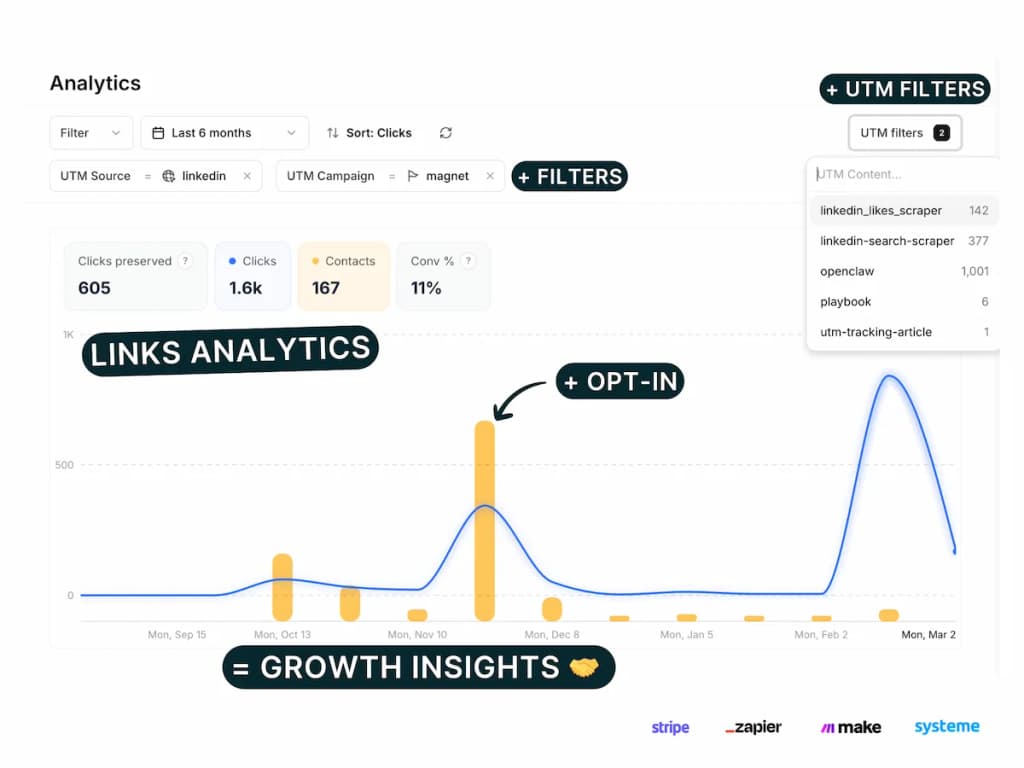
Managing UTM parameters across three or more ad platforms is where errors multiply. PIMMS simplifies this with smart links that embed UTM tracking, branded domains, and deep linking in a single URL:
- One link per campaign. Create a PIMMS smart link with your UTM parameters, then use it across Google, Meta, and LinkedIn. All clicks flow into one analytics view.
- Deep linking for mobile ads. Mobile ad clicks often open in in-app browsers, creating friction. PIMMS deep links route users directly to the correct app screen or mobile-optimized page, increasing conversion rates by up to 30%.
- Revenue attribution. Connect PIMMS with Stripe or Shopify to see actual revenue per click, per campaign, per platform — not just conversions.
- Branded short links. Instead of a long URL with five UTM parameters, share a clean branded link that looks professional in ad previews.
For multi-platform ad campaigns, centralized link management eliminates the inconsistency that happens when three different team members set up UTMs in three different ad dashboards.
Advanced: Dynamic UTM Parameters and Platform Macros
Each ad platform supports dynamic parameters that auto-fill with real-time campaign data. Using them correctly means you set up the UTM template once and never touch it again — even when you create new campaigns.
Google Ads ValueTrack Best Practices
- Use
\{campaignname\}instead of hardcoding campaign names. When you rename a campaign, the UTM updates automatically. - Add
\{network\}to distinguish Search from Display clicks. - Include
\{device\}if you optimize bids by device and want conversion data split by mobile/desktop.
Meta Ads Dynamic Parameters Best Practices
- Use
\{\{campaign.name\}\}and\{\{ad.name\}\}at minimum. - Add
\{\{placement\}\}toutm_contentif you run across Feed, Stories, and Reels — performance varies significantly by placement. - Avoid using
\{\{campaign.id\}\}as the only identifier — numeric IDs are unreadable in reports.
LinkedIn Ads Dynamic Macros Best Practices
- Use
\{\{CAMPAIGN_NAME\}\}for the campaign identifier. - LinkedIn's macro support is more limited than Google or Meta. For ad-level differentiation, you may need to set
utm_contentmanually per ad if the creative name macro does not populate consistently.
Troubleshooting Common Issues
Problem: UTM Data Shows "(not set)" in GA4
Cause: The UTM parameter name is misspelled (utm_souce instead of utm_source) or the value is empty.
Fix: Check the destination URL in your ad platform. Click the ad preview link and verify the full URL with parameters appears in the browser address bar.
Problem: Paid Traffic Appears as "Organic" in GA4
Cause: UTM parameters are missing from the ad URL, or auto-tagging is disabled in Google Ads.
Fix: For Google Ads, enable auto-tagging. For Meta and LinkedIn, add manual UTM parameters. Verify by clicking a test ad and checking real-time reports in GA4.
Problem: Double-Counting Conversions
Cause: Both gclid auto-tagging and manual UTMs are active on Google Ads without the override setting enabled, creating two sessions for the same click.
Fix: Enable "Allow manual tagging to override auto-tagging" in GA4 settings if you use both methods. Or remove manual UTMs from Google Ads and rely solely on auto-tagging.
Problem: Campaign Names Have Encoding Errors
Cause: Campaign names with special characters (&, %, +) break URL encoding when used in dynamic parameters.
Fix: Keep campaign names in all ad platforms clean: lowercase, hyphens only, no special characters. This is the single most effective rule for preventing UTM data issues.
Measuring Paid Ad ROI with UTM Data
UTM tracking enables true cross-platform ROI calculation:
- Pull session and conversion data from GA4 filtered by
utm_medium=cpcorutm_medium=paid-social. - Map conversion values. If you track revenue events in GA4, you already have this. If not, assign average values to conversion events (demo request = $500, trial signup = $100).
- Import ad spend from each platform. Google Ads, Meta Ads Manager, and LinkedIn Campaign Manager all export cost data.
- Calculate ROAS per platform: Revenue ÷ Ad Spend.
- Calculate blended ROAS: Total revenue from all paid channels ÷ Total ad spend.
Tools like PIMMS automate steps 1-4 by connecting your ad clicks directly to Stripe or Shopify revenue, showing ROAS per campaign in a single dashboard without manual data stitching.
Frequently Asked Questions
Should I use auto-tagging or manual UTMs for Google Ads?
Use auto-tagging as your primary method if GA4 is your analytics platform — it provides the most detailed data with zero maintenance. Add manual UTMs only if you use additional analytics tools that cannot read gclid, or if you need cross-platform naming consistency.
What utm_medium should I use for paid social ads?
Use paid-social or paidsocial for paid social campaigns on Meta, LinkedIn, TikTok, and Twitter/X. This keeps paid social separate from organic social (utm_medium=social) in your GA4 channel grouping reports.
How do I track which ad creative converts best?
Use utm_content to encode the creative variant. For example: utm_content=video-testimonial-30s vs utm_content=static-product-image. In GA4, create an exploration report grouped by utm_content with your conversion metric as the value.
Do I need UTM tracking if I use Meta's Conversions API?
Yes. Meta's Conversions API tracks events within Meta's ecosystem for ad optimization and reporting. UTM parameters track the same events in your own analytics platform (GA4, Mixpanel, PIMMS). Both serve different purposes and should be used together.
How do I handle UTM tracking for retargeting campaigns?
Tag retargeting campaigns with a distinct utm_campaign value, such as 2026-q1-retargeting-cart-abandon. This separates retargeting conversions from prospecting conversions in your analytics, giving you accurate CPA and ROAS for each campaign type.
Can UTM parameters track view-through conversions?
No. UTM parameters only fire when a user clicks a link. View-through conversions (where someone sees an ad but does not click) require platform-specific tracking pixels (Meta Pixel, LinkedIn Insight Tag) or a multi-touch attribution tool. UTM tracking captures click-through attribution only.